
Simple Ways to Increase Your iPhone Storage
Have you you ever got the dreaded “Storage Almost Full” notification on your iPhone? It just happens at the worst time—maybe just as you’re downloading that 4K blockbuster or taking dozens of photos of your dog. Regardless of the explanation, your storage is maxed out and it is time to repair it. The good news? It’s easier than you think to optimize your iPhone storage.
We get it—you probably want to keep your favorite movies or that endless photo reel for easy access. But with a few practical tips, you’ll be able to strike a happy balance between having what you want on your phone and still keeping some space free.
How to Optimize Your iPhone Storage
Wave goodbye to those annoying storage warnings
Buying extra iCloud storage from Apple is one solution (and it’s not too expensive), but there are plenty of steps you can take first to free up space on your iPhone—without spending a dime.
Check Your Available iPhone Storage
Before you do anything else, find out how much storage you have left and what’s hogging the most space. Go to Settings → General → iPhone Storage. At the top, you’ll see a color-coded bar showing how your storage is being used (apps, media, photos, etc.) and how much is left overall.
Below that, you’ll see Apple’s suggestions for freeing up space (like Offload Unused Apps, Optimize Photos, or Review iTunes Videos). You can check these out, but you might want to keep reading for more detailed advice.
Finally, you’ll notice your apps listed in order of how much storage they take up. Often, games are the biggest culprits, using up several gigabytes each. That’s a handy list to see where you can make the most significant cuts.
Free Up Space on iPhone
If your storage bar is creeping closer to full capacity, try these tips to clear out the clutter.
Delete or Offload Unused Apps & Data
One of the quickest wins for freeing up space is removing apps or data you don’t actually need. Head to that list in iPhone Storage and identify your storage hogs. Maybe it’s a game you haven’t played in six months or a work app from a previous job. So goodbye—at least for now.
When you tap an App, you get two options: Offload app and Delete app.
Offload Unused Apps
Offloading an app temporarily removes the app file itself but keeps its data. This is great if you’re planning to use the app again later because you’ll pick up right where you left off. Just note that offloading won’t help much if the app’s data (like music or large files) is what’s taking up the bulk of the space.
To bulk offload apps, enable Offload Unused Apps under your storage recommendations or via Settings → iTunes & App Stores. Just remember, once an app is offloaded, you can’t open it without redownloading.
Delete Unused Apps
“Delete App” removes both the app and its associated data completely. So if you know you won’t be using, say, that 4GB racing game ever again, deleting it is your best move for freeing up space fast.
Delete Downloaded Music and Podcasts
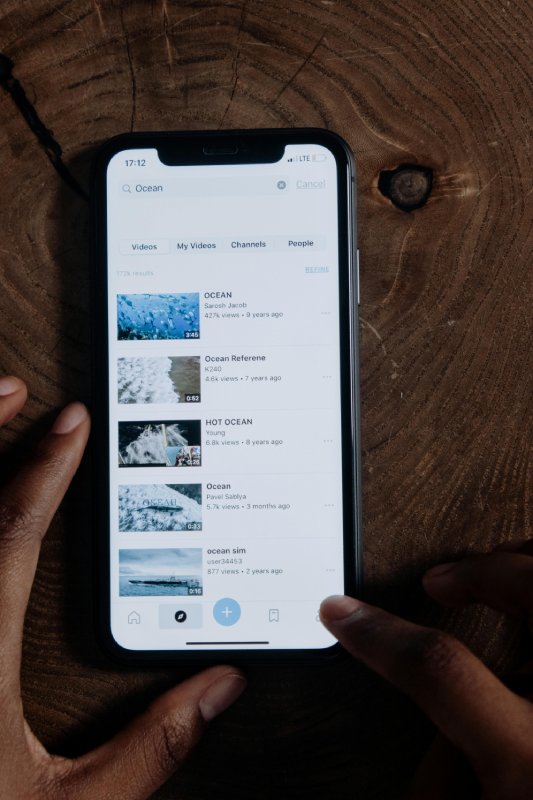
Downloaded music and podcasts can take up a surprising amount of memory, especially if you like to store entire playlists offline or subscribe to multiple shows.
Delete Downloaded Music
Open Settings → General → iPhone Storage → Music → Edit. From here, you can wipe out your entire music library or remove content by artist, album, or song. Keep in mind this only deletes offline content from the Apple Music app, not from Spotify or other music streaming platforms.
Delete Downloaded Podcasts
Go to Settings → General → iPhone Storage → Podcasts → Edit and tap the minus sign next to a podcast to delete its downloaded episodes. To prevent auto-downloads in the future, navigate to Settings → Podcasts → Download Episodes and select End. You can also choose Delete Played Episodes so that any episode you’ve finished listening to is automatically removed.
Optimize iPhone Photos
Your iPhone’s camera takes amazing pictures—but they can eat up a lot of space. Here are a few ways to slim down your Photo Library.
Enable High Efficiency Mode
On newer iPhone models, you can switch to High Efficiency mode to reduce the file size of new photos without sacrificing quality. Go to Settings → Camera → Formats and select High Efficiency. You’ll still get great-looking photos, minus the massive file sizes.
Optimize Photos on Your iPhone
One of Apple’s storage suggestions might be Optimize Photos. Turning this on means your phone saves a lower-resolution version of each image, while full-quality versions go to iCloud. It’s a great space-saver, but remember that if you share photos from your phone, you’ll be sharing the lower-res version.
In case you frequently use HDR mode, your phone will save two versions of each photo – the original and the HDR version. To stop photos from being duplicated, go to Settings → Camera and turn off Keep Normal Photo.
Finally, consider uploading all your photos to iCloud (or another cloud service) to free up even more space. Just know you may need extra iCloud storage if you have a large photo collection. You can also disable My Photo Stream to avoid saving duplicate images across devices (go to Settings → Photos and switch off Upload to My Photo Stream).
Delete Message Data or Conversations
Texts, pictures, and videos sent via the Messages app can quickly add up. You can delete entire conversations or individual messages—or just remove attachments like photos and GIFs.
- Entire Conversations: Open Messages, swipe left on the conversation you want to delete, and tap Delete twice.
- Individual Messages: Open the conversation, tap and hold a message, then choose More. Select the messages to remove and hit the trash can icon.
- Attachments Only: Go to Settings → General → iPhone Storage → Messages, then tap a category (e.g., Photos, Videos, GIFs). Select what you want to delete, then tap Trash.
You can also set up your iPhone to automatically delete old messages after 30 days or one year. Go to Settings → Messages → Keep Messages and choose 30 Days or 1 Year. For voice messages, go to Settings → Messages → Audio Messages → Expire and select After 2 Minutes.
Remove Unwanted Videos
Videos are notorious space hogs. To delete them, go to Settings → General → iPhone Storage, select Show All if needed, then tap Review Personal Videos. Pick the ones you don’t need anymore and tap Trash, followed by Delete From This iPhone.
Clear Out “Other” Storage
While reviewing your storage, you might have seen a mysterious “Other” category. This includes caches, system files, and other data your phone doesn’t categorize. To clear it, you can remove your Safari cache: Settings → Safari → Advanced → Website Data. Delete data individually or tap Remove All Website Data to clear everything at once.
Transfer or Move Your Data
If you’ve tried everything and still need space, consider offloading your files somewhere else. Cloud services like iCloud, Google Photos, Google Drive, or Dropbox work great for moving photos, videos, documents, or music off your phone. Alternatively, an external flash drive is another safe storage option if you’d rather not put everything in the cloud.
Still Not Enough Room? Sell Your iPhone
If you’ve pulled out all the stops—deleting, offloading, optimizing—and your iPhone still doesn’t have enough space, it might be time to upgrade. A phone with 256GB or more can be a game-changer if you’re coming from a lower-capacity device.
And if you’re ready to part with your old iPhone, consider selling it to GadgetPickup. We’ll put cash in your pocket, cover shipping costs, and beat competitor offers. Why settle for less when you can earn more?
Remember: with iPhone storage, bigger really is better. We hope these tips help you reclaim some space—and if you need to upgrade to store all those dog pictures in one place, we’ve got you covered!